Browsing & Watching
Once a source is added, its channels or media show up in a list — everything below applies whether that list came from a playlist, a portal, a media server, or a box on your own network.
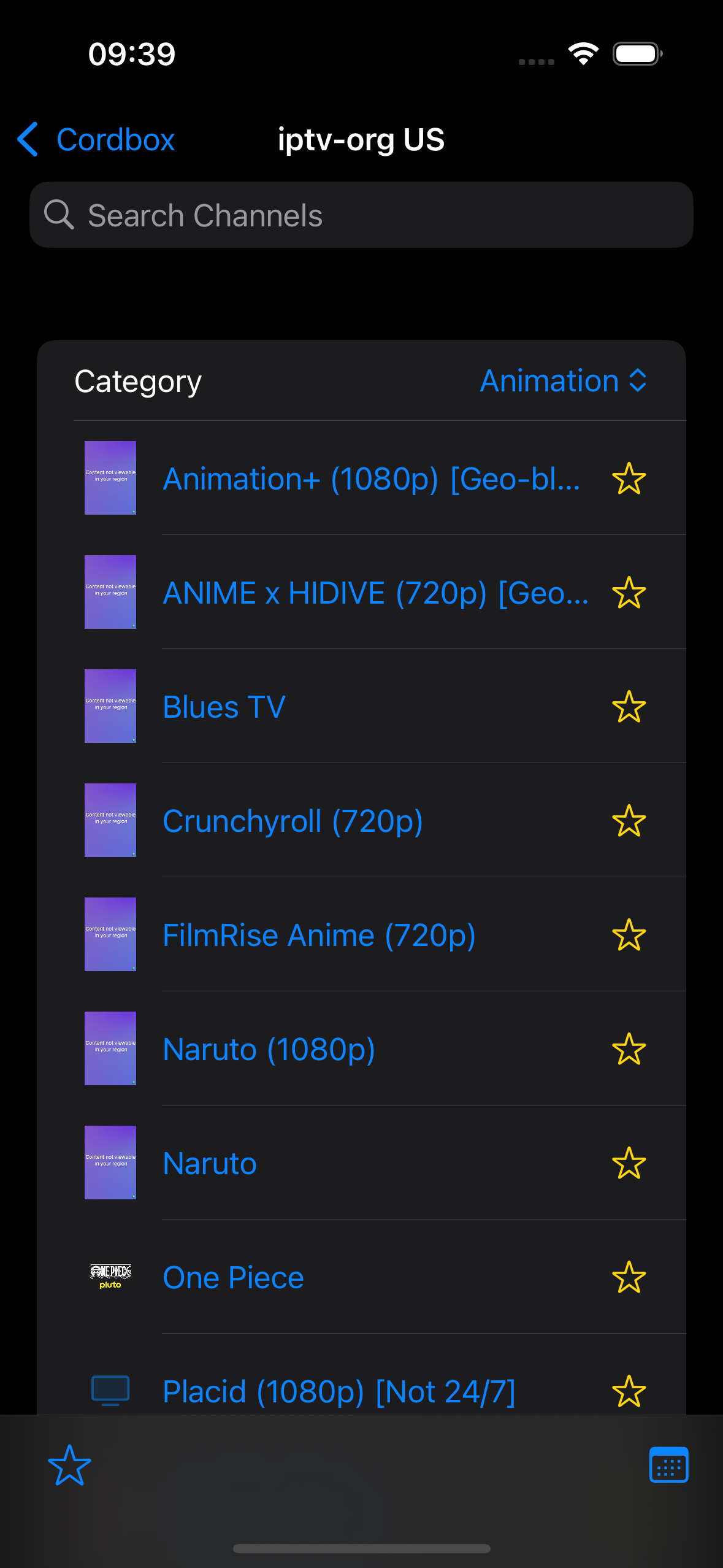
Browsing your list
Search and category filters are both in the toolbar above the list. Tap anything to play it — a live channel starts immediately; a movie or episode shows a short synopsis first where one's available (toggle it off from the list's toolbar if you'd rather see more titles at once). For a media library (Plex, Jellyfin, Emby, DLNA, SMB/NFS), you can also sort the list — by name, size, or date, whichever the source actually has real data for.
Long-press for more options
Long-press almost anything in Cordbox — a source, a channel, a movie or episode, a programme, a download — to bring up a context menu with quicker access to actions that also exist elsewhere, plus a few that only live here. What's on it depends on where you are:
- The sources list (main screen) — Edit and Delete, the same as the row's swipe actions.
- A folder in the media library (a series, or a VOD category) — Look Up on OMDb, using the folder's own name.
- A movie or episode in the media library — Just-In-Time Transcode, Mark as Watched/Unwatched, Look Up on OMDb, Copy Info, and Delete. Where the source supports downloading (an Enigma2 recording, or a file on an SMB or NFS network share), also View in Downloads or Cancel Download (once downloading) and Download. For a movie or an Xtream series' own row, also Add to Watchlist or Remove from Watchlist.
- A channel in the channel list — Just-In-Time Transcode for live channels, Look Up on OMDb for whatever's currently airing (only shown once the guide knows a title), and Copy Info.
- The guide, grid or list view — Just-In-Time Transcode and Look Up on OMDb, same as the channel list.
- A single channel's own schedule (tap a channel in the guide to open it) — Watch Now for whatever's currently airing, and Record or Cancel Recording where the source supports it. See Recording & Downloads.
- Recordings & Timers (Enigma2) — Edit and Cancel, the same as the row's swipe action.
- Downloads — Just-In-Time Transcode, Mark as Watched/Unwatched, Look Up on OMDb, Edit, Delete, and Check & Fix Playback — see Recording & Downloads for what that one actually does.
Favorites
Mark channels you come back to often as a favorite, then filter the list down to just those — useful once a source's full channel count gets into the hundreds. With the list filtered to favorites, an Edit button appears (once you have more than one) to drag them into your own order — that order is remembered across restarts.
The guide
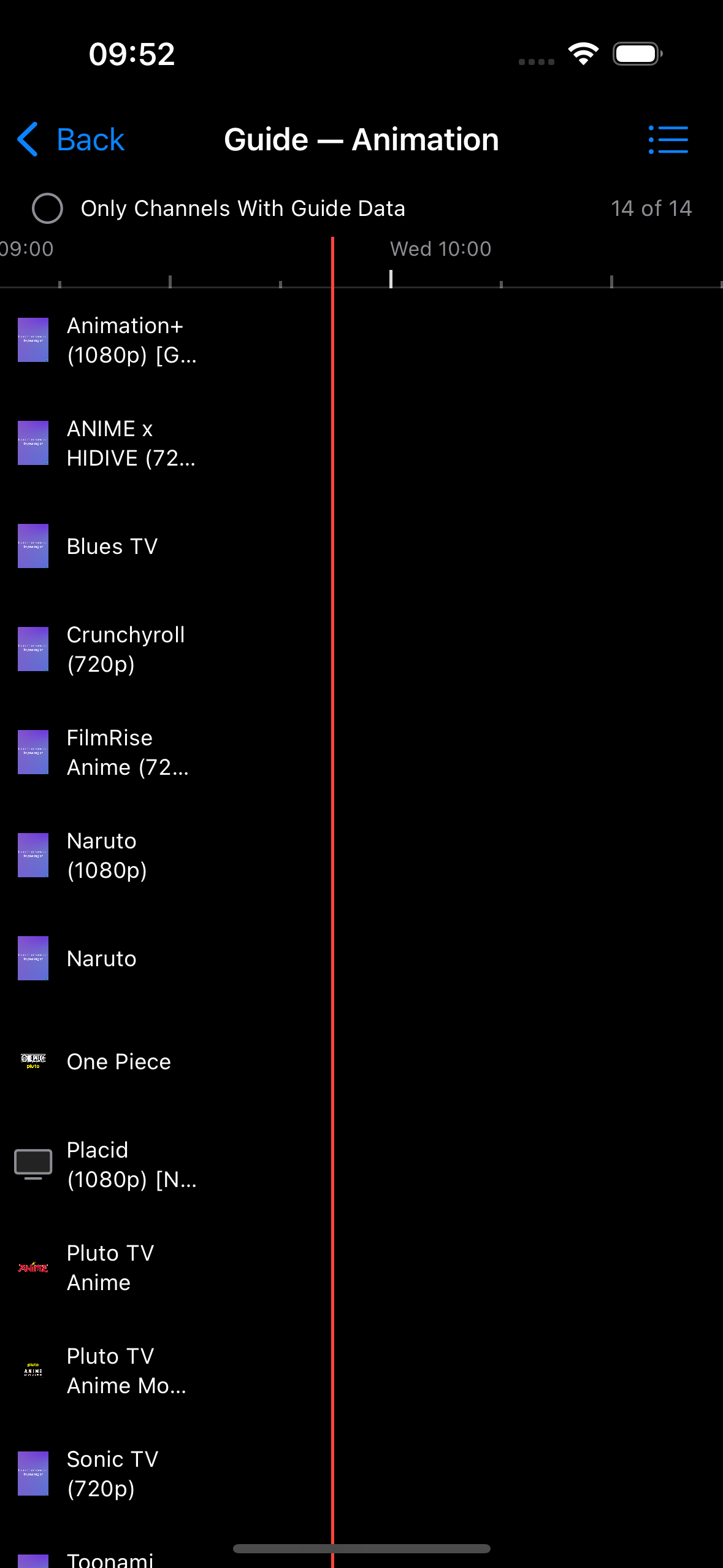
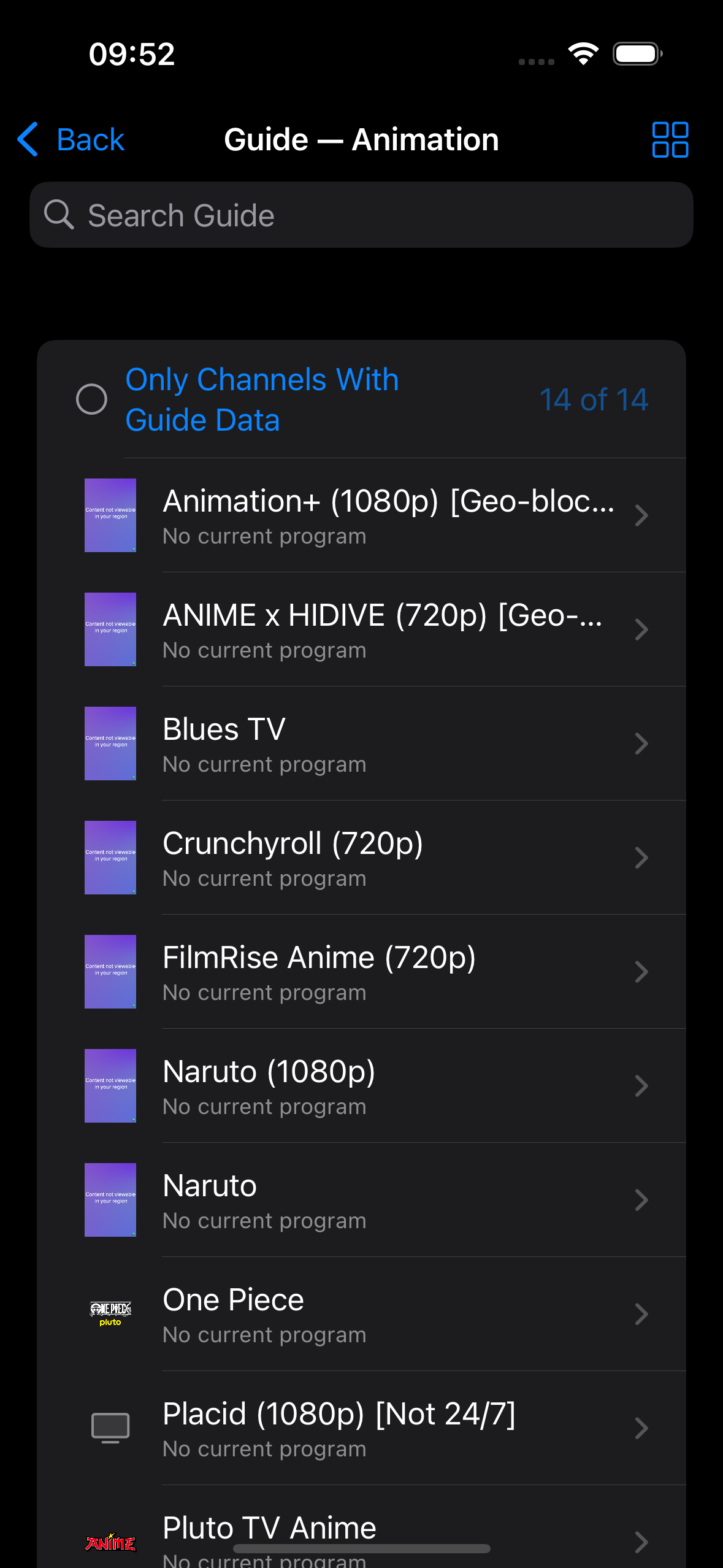
Live sources also offer a Guide — an electronic programme guide (EPG) showing what's on now and next. View it as a grid (every channel against a shared timeline, good for browsing what else is on) or a list (one channel's current and next programme, with a progress bar for what's airing now — more detail per channel, often a better fit on a smaller screen). Switch between them from the guide's own toolbar; your choice is remembered. Tapping a programme shows its details first, with a direct way to watch or — where the source supports it — record. If you'd rather see programme times as "2:30 PM" than "14:30", turn on 12-Hour Time in Settings.
Playback controls
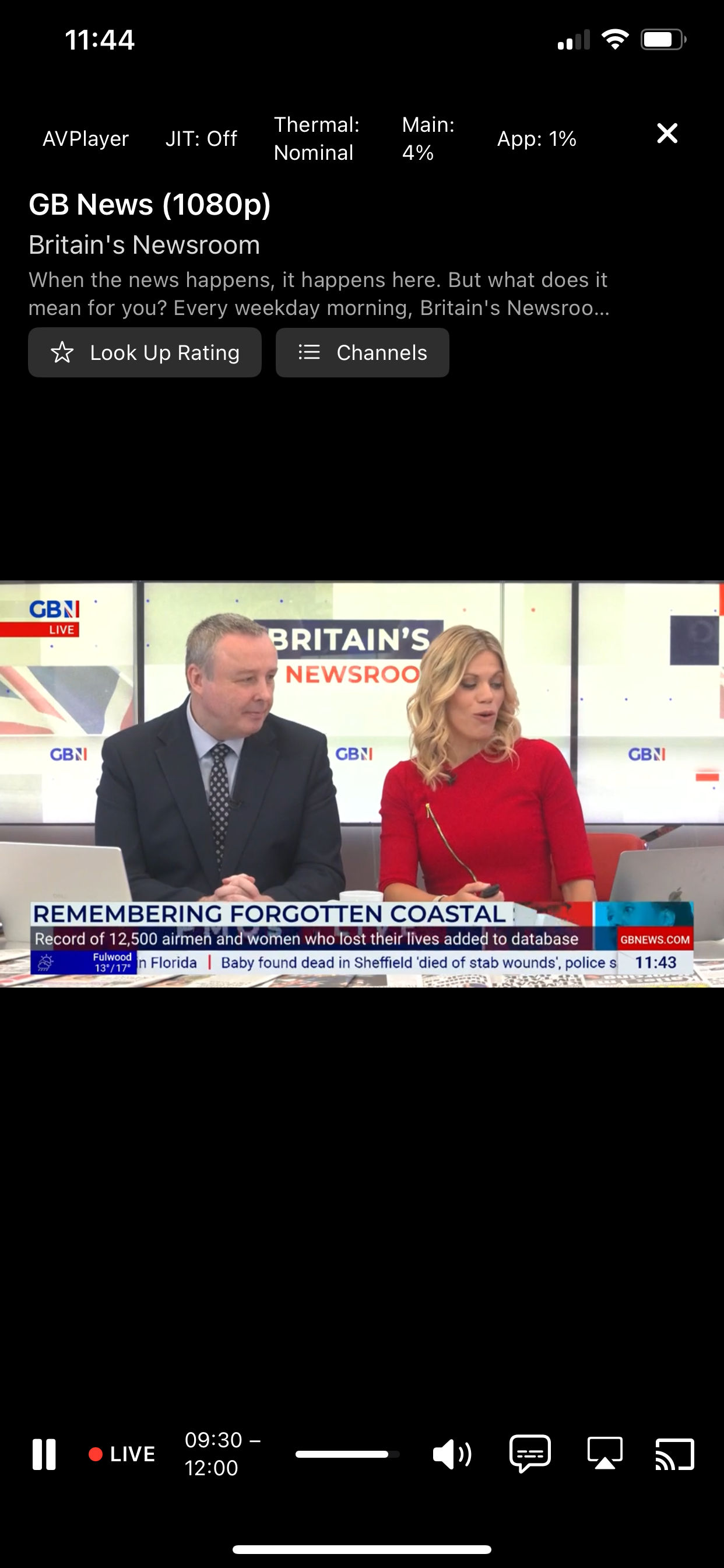
Tap the video to show or hide the transport bar; it hides itself automatically after a few seconds of inactivity (adjustable, or disable it entirely, in Settings). Where a stream offers more than one audio track or subtitle track, Audio and Subtitles menus on the player let you switch between them.
Background the app during playback and video keeps going in a floating Picture-in-Picture window — but only for streams playing through Cordbox's AVPlayer engine. Some streams use VLCKit instead, automatically, because they don't play reliably in AVPlayer; see Choosing a player engine for why, and how to check or change which one a source is using.
A small status row above the title always shows the active player engine, JIT status, device thermal state, and CPU usage — not a debug toggle, this is shown for every stream, since each of these can explain real playback behavior on its own (a VLCKit fallback, a slow Just-In-Time Transcode, or an unresponsive tap screen). See Show Stream Info in Settings for what that toggle adds on top of it.
Looking up a title's rating and plot
On the player's tap screen, a Look Up Rating button fetches a title's IMDB rating, Rotten Tomatoes score, and Metascore, along with its poster, plot, genre, cast, and awards, from OMDb — opened as a resizable sheet you can read through while playback keeps running underneath. This needs your own free OMDb API key set in Settings first; the button only appears once one's set. Matching is by title, so an unusual or scene-release-style title (e.g. one with a resolution tag or a bracketed year) may occasionally match the wrong thing, or nothing at all — the sheet always shows OMDb's own matched title alongside the result, so a mismatch is obvious rather than looking like a Cordbox bug.
The same lookup is also one long-press away from the channel list, the guide, and the media library, without opening the player first — see Long-press for more options below.
Copy Info
Long-press a movie, episode, or channel and choose Copy Info to see exactly what Cordbox is playing underneath — its title, source, stream ID, and the resolved stream URL or filename — with a Copy button next to each field for pasting elsewhere. Where the URL contains your account credentials (an Xtream username and password embedded in the path, for example), it's masked by default; tap the eye icon to reveal the real value before copying it.
For an SMB or NFS network share, this shows the real
smb:// or nfs:// address for the file —
useful for opening the same recording from a desktop file manager or
another app on your network — alongside the original, unparsed
filename from the share itself.
Reachable via long-press from the media library and the channel list — see Long-press for more options above.
Watched status
Movies, series episodes, and downloaded recordings get a small watched badge automatically once you finish them, in both the media library and Downloads. You can also mark something watched or unwatched yourself at any time — long-press it and choose Mark as Watched or Mark as Unwatched. This is independent of Resume Playback in Settings: turning that off stops playback from picking up where you left off, but doesn't change whether something's marked watched.
Watchlist
For Xtream movies and TV series, long-press an item — or, for a series, the show's own row before you open it — and choose Add to Watchlist to bookmark something you want to get to later. A small bookmark icon marks anything on your Watchlist, and a bookmark button in the toolbar filters the list down to just those. Remove something the same way, via Remove from Watchlist.
For a series, watchlisting applies to the whole show, not individual episodes — there's no separate watchlist or progress tracking per episode, just a bookmark on the series itself.
Filter by Resume
In a media library or Downloads, the circular-arrow button in the toolbar filters the current list down to just what has a resumable position saved. It finds resumable items anywhere in the source, not only the ones visible in your current folder — a movie category, a series, or a specific season all show the same results, so there's no need to hunt back down to wherever you were watching to pick it back up.