Settings
Reachable from Settings in the overflow menu (⋯) on the main screen. These are global — they apply across every source, not per source.
Manage Subscription
Opens the subscription screen — subscribe to remove ads, or, if you're already subscribed, see your renewal date and price, or restore a purchase made on another device. See "How do ads work on the free tier?" for how the ad-supported tier itself works.
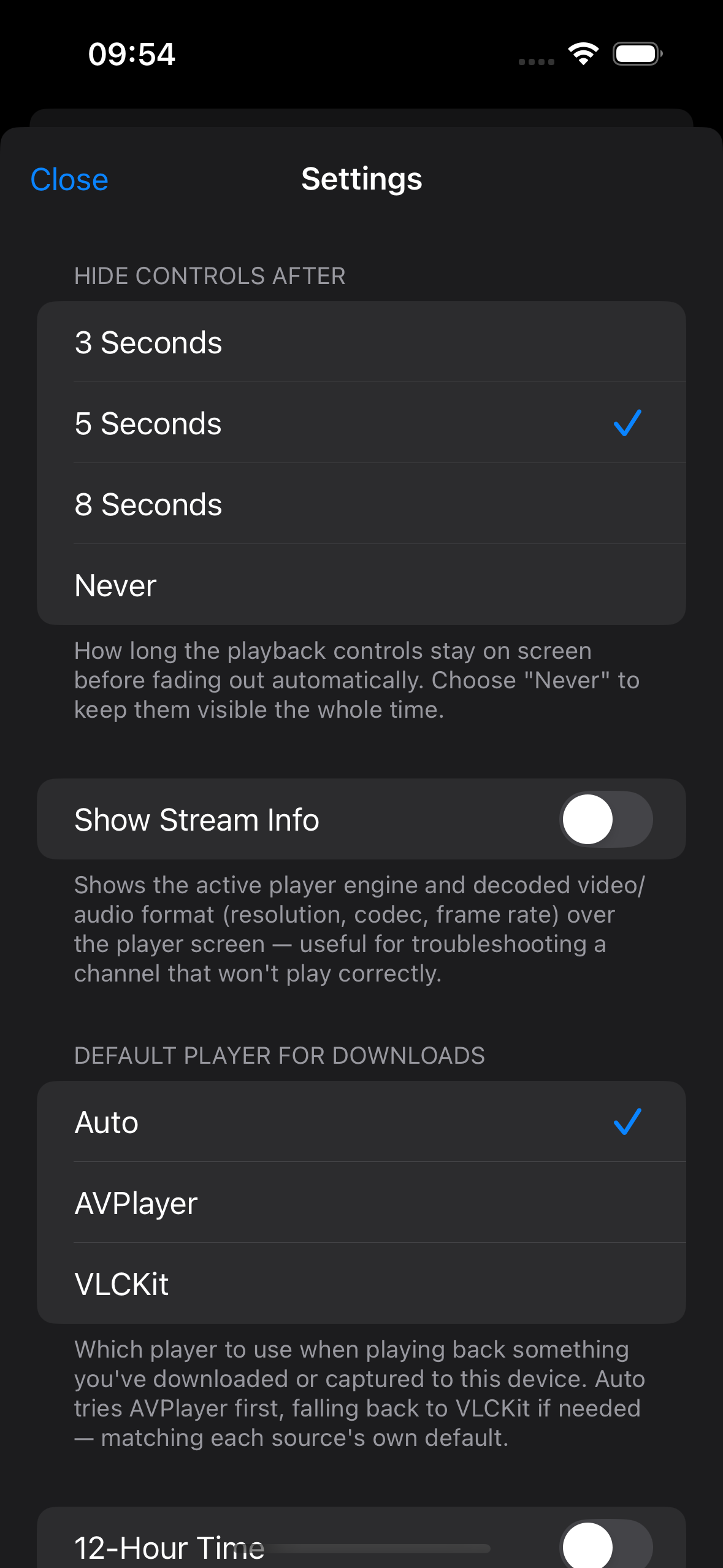
Hide Controls After
How long the playback controls stay on screen before fading out automatically. Choose "Never" to keep them visible the whole time.
Show Stream Info
Shows decoded video/audio format (resolution, codec, frame rate) over the player screen — useful for troubleshooting a channel that won't play correctly. The active player engine, JIT status, the device's current thermal state, and CPU usage (both the app overall and its main thread specifically) are shown over the player regardless of this toggle, since they explain real playback behavior on their own — including whether the device overheating, or a genuinely overloaded main thread, is behind a slow or unreliable Just-In-Time Transcode or an unresponsive tap screen. Thermal state is shown in white normally, turning orange or red once it's elevated enough to plausibly be affecting playback.
A Thermal State row right underneath this toggle shows the same value directly in Settings, live, whether or not anything's currently playing — a quicker check than starting playback just to see it.
Enable Chromecast
Off by default — turn this on to cast already-compatible content to Chromecast devices directly; content that needs on-device transcoding first is transcoded automatically and retried. Experimental. When casting a downloaded video, keep Cordbox open in the foreground, since it's streamed from this device. See Casting for the full picture.
Default Player for Downloads
Which player to use when playing back something you've downloaded to this device. Auto tries AVPlayer first, falling back to VLCKit if needed — matching each source's own default. See Getting Started for what Auto/AVPlayer/VLCKit each mean.
Resume Playback (Downloads)
Picks up a downloaded video where you left off instead of starting from the beginning. Independent of watched status — see Browsing & Watching for how Cordbox tracks what you've already watched.
Just-In-Time Transcode
Fixes video/audio problems on the device in real time instead of falling back to VLCKit, so more content can use AirPlay/Picture-in- Picture. Off by default (uses more battery than plain VLCKit playback). A separate Apply to Live Channels toggle, shown once the main one is on, extends this to live TV — see Just-In-Time Transcode for the full picture, including a known screen-lock reliability limitation for live channels.
Allow Cellular (Downloads Network)
Off by default. Turn this on to let downloads use cellular data instead of only Wi-Fi. Takes effect from the next launch, not mid-download.
12-Hour Time
Shows program times in the guide (grid, list, and per-channel listings) as, for example, 2:30 PM instead of 14:30.
Guide and programme times currently follow your device's own clock format — Settings → General → Language & Region → 24-Hour Time on your iPhone/iPad — rather than this toggle on its own. If your device is set to a 24-hour clock, times in Cordbox will show as 24-hour even with this switched on; turn off 24-Hour Time in iOS Settings if you want to see 12-hour times here.
Permanent Display Mode
For a screen mounted to show the guide continuously — for example, next to a TV showing the set-top box's own output. With this on, the guide's auto-scroll recovers from being touched faster, and tapping a channel to play or change it on the set-top box asks for confirmation first, so an incidental touch on an unattended screen can't unexpectedly change what's showing.
Playback Diagnostics
A history of recent playback attempts, including any that didn't finish cleanly — useful for troubleshooting a channel that hangs or crashes the app. See also the FAQ's "a stream won't play" answer.
Download History
A history of completed and failed downloads, separate from the Downloads screen itself — useful for checking whether something finished or seeing why it didn't.
Debug Logging
Off by default. Writes detailed technical logging to a local file, useful when troubleshooting a hard-to-reproduce problem — turn it on, reproduce the issue, then view or share the log from View Debug Log underneath. Logging keeps running across app restarts until you turn it back off.
"Playback Interrupted" Alert
Warns on launch if the app had to restart after a channel hung or crashed during playback. Turning this off doesn't affect Playback Diagnostics history above, just this alert.
Ratings Lookup (OMDb API key)
Lets you look up a title's IMDB rating and Rotten Tomatoes score from the player screen — see Browsing & Watching. It's free: omdbapi.com issues your own personal key by email, which keeps your lookups separate from everyone else's rather than sharing one key's limit across every Cordbox install. A key can take a few minutes to activate after signing up — paste it in here once it has.
Collect Movie Descriptions
Off by default. For Xtream Codes sources, quietly fetches missing movie/series descriptions in the background a little at a time, so browsing and search have plot text to show without waiting on a slow bulk fetch. Only runs while nothing else needs the source, and pauses automatically while you're actively browsing that source's channel list.
Show Feature Tips
Shows the short in-context tips that point out newer or less obvious features as you use the app. Turn off to stop seeing them, or use Reset All Tips underneath to see them all again from scratch.