Getting Started
A source is anywhere Cordbox gets its channels or media from — an IPTV playlist or portal, a media server, or a shared folder on your own network. Add one from the + button on the main screen, then pick the type that matches what you already have.
Discovering devices on your network
For most source types that live on your own local network, you don't have to type in an address by hand. The + menu's Discover Devices option scans for Enigma2 boxes, Jellyfin/Emby servers, Plex servers, and SMB/NFS network shares all at once and lists whatever it finds — tap a result to add it, already filled in. Each of those source types also has its own narrower, faster scan (Discover Enigma2 Boxes, Discover Jellyfin & Emby, Discover Plex Servers, Discover Network Shares) if you already know which kind you're adding. DLNA/UPnP works a little differently — adding a DLNA source starts directly with a scan for nearby media servers rather than a separate discovery step first.
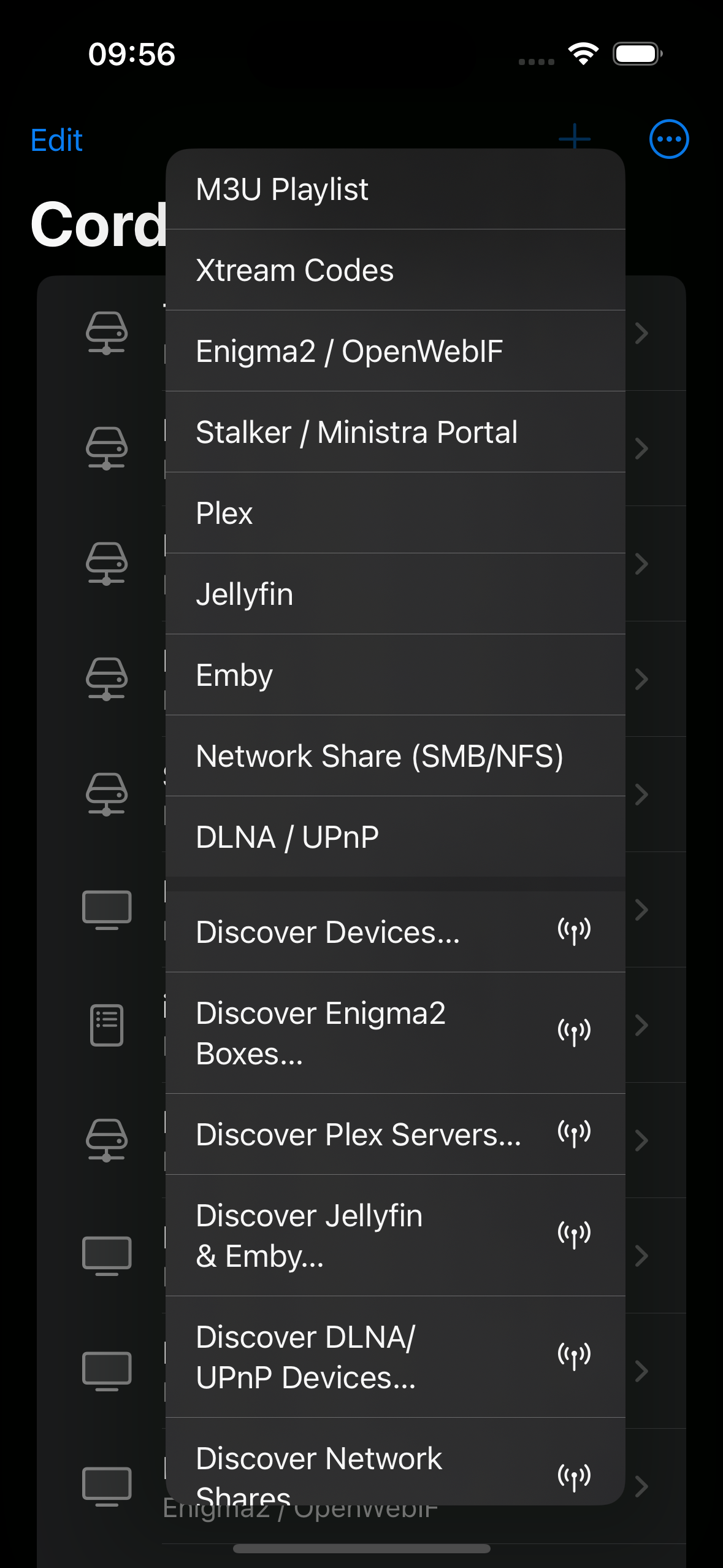
Discovery only works on your own local network — it relies on network broadcast techniques that don't cross a VPN tunnel. If you're setting a source up while away from home, or the device you want isn't turning up, use manual entry instead; see Remote Access for the DLNA-specific workaround.
M3U / M3U8 playlists
The most common format for IPTV. You'll need a playlist URL (it
usually ends in .m3u or .m3u8) — enter a
name and the URL, and Cordbox fetches and parses it. If the playlist
has an attached EPG (electronic programme guide) feed, Cordbox picks
that up automatically and uses it to show what's on now and next.
Xtream Codes
A common API used by many IPTV providers. You'll need a host address, port, username, and password — these come from whoever provides your subscription. Cordbox uses them to fetch your channel list, an electronic programme guide where available, and to play streams.
Stalker / Ministra portal
Another common IPTV portal system. Instead of a username and password, Stalker/Ministra authenticates by MAC address — enter the portal URL and the MAC address you were given.
Enigma2 / OpenWebIF
For a real set-top box on your own network running Enigma2 (the software behind many satellite/cable receivers) with its OpenWebIF web interface enabled. Enter the box's address on your network and its API/stream ports — a username and password are only needed if you've set up authentication on the box itself. If your box's OpenWebIF is configured for HTTPS rather than plain HTTP, Cordbox supports that too.
Enigma2 sources unlock a set of extras once added — Zap Mode, a full remote control, and bouquet management (see Live TV Extras), plus recordings and timers (see Recording & Downloads).
Plex, Jellyfin, Emby
If you already run one of these on your network, add it as a source with its server address and your sign-in details, and Cordbox lists your libraries alongside any other sources you've added.
DLNA / UPnP
Cordbox can discover DLNA/UPnP media servers already running on your local network (many NAS devices and routers offer this) — add this source type and Cordbox looks for what's available nearby.
SMB / NFS network shares
For playing media directly from a shared folder — a NAS or another computer on your network — add the share's address and any credentials it needs.
If the share holds PVR-style recordings named things like
20260807 1400 - BBC One HD - The Hairdresser Mysteries.ts,
the add-source screen's Filename Masks section lets
you describe that pattern using placeholders —
YYYYMMDD, HHMM, CHANNEL, and
PROGRAM — so Cordbox can show a clean title, channel, and
broadcast date instead of the raw filename. Sensible defaults are
already filled in; add more than one pattern if your recordings come
from boxes with different naming conventions, and each filename is
matched against them in order.
Choosing a player engine
Every add-source screen has a Player option — Auto (the default), AVPlayer, or VLCKit. Auto tries AVPlayer first and automatically falls back to VLCKit if a stream doesn't play — the right choice for almost everyone. Pinning a specific engine skips that automatic fallback, which occasionally helps with a stream that plays incorrectly (wrong colors, no audio, stalls) under Auto's first choice. This is set per source, so different sources can use different engines.
This choice also affects two other things: AirPlay and Picture-in-Picture are both only available when a stream is actually playing through AVPlayer — VLCKit doesn't support either yet. Auto's fallback to VLCKit isn't arbitrary — some streams genuinely don't play reliably in AVPlayer, which is exactly why Auto exists as the safe default. If AirPlay or Picture-in-Picture matter to you for a source that's defaulting to VLCKit, pinning AVPlayer is worth trying — some streams turn out to play fine once forced, though not all will, and a stream that plays incorrectly or not at all under a pinned AVPlayer is a sign that source genuinely needs VLCKit.
Finding your way around
Once a source is added, its channels or media show up in a list you can search and filter by category — tap anything to play it. From there, see Browsing & Watching for favorites, the programme guide, and playback controls.