The complete Cordbox manual, every topic in reading order on one page — useful for searching (Cmd/Ctrl-F) or printing. Download as a PDF to read offline.
Getting Started
A source is anywhere Cordbox gets its channels or media from — an IPTV playlist or portal, a media server, or a shared folder on your own network. Add one from the + button on the main screen, then pick the type that matches what you already have.
Discovering devices on your network
For most source types that live on your own local network, you don't have to type in an address by hand. The + menu's Discover Devices option scans for Enigma2 boxes, Jellyfin/Emby servers, Plex servers, and SMB/NFS network shares all at once and lists whatever it finds — tap a result to add it, already filled in. Each of those source types also has its own narrower, faster scan (Discover Enigma2 Boxes, Discover Jellyfin & Emby, Discover Plex Servers, Discover Network Shares) if you already know which kind you're adding. DLNA/UPnP works a little differently — adding a DLNA source starts directly with a scan for nearby media servers rather than a separate discovery step first.
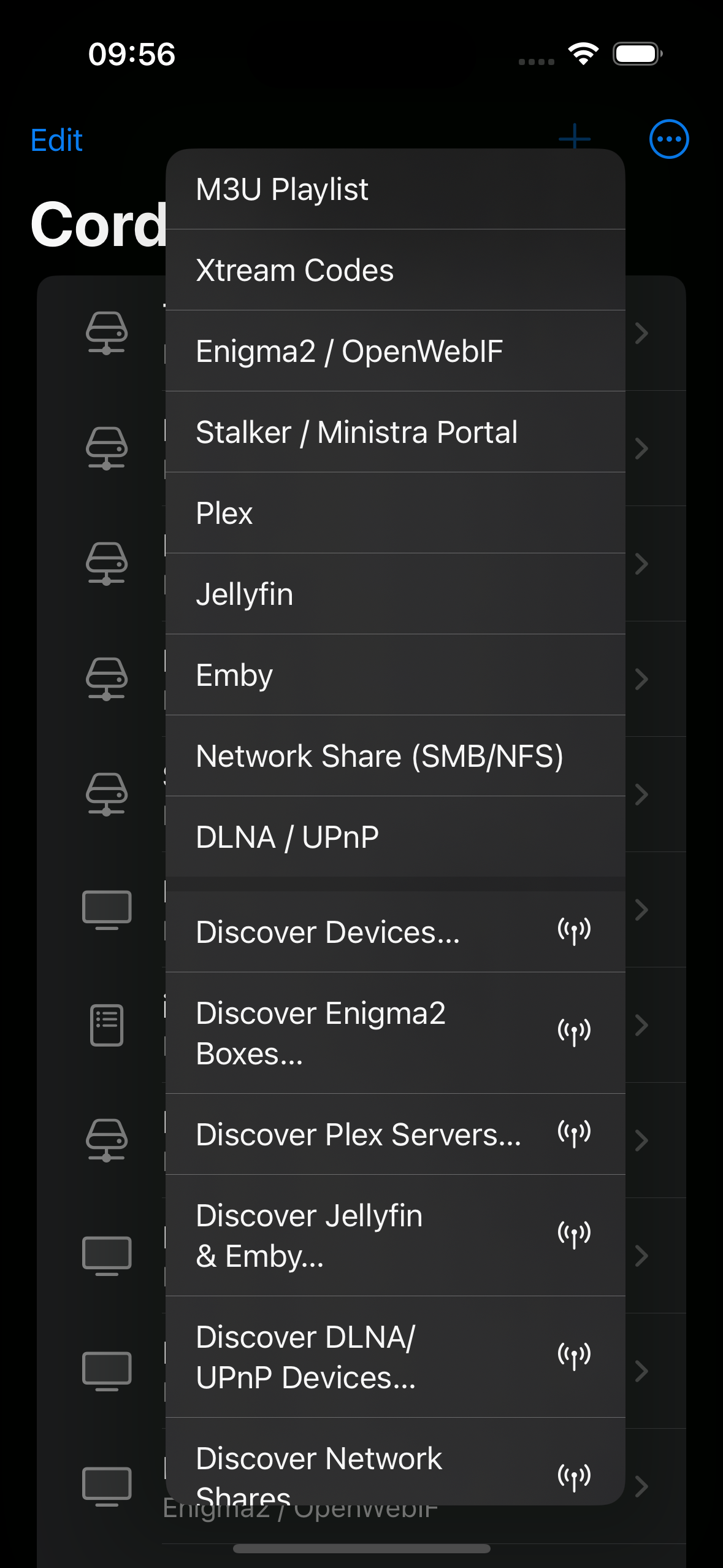
Discovery only works on your own local network — it relies on network broadcast techniques that don't cross a VPN tunnel. If you're setting a source up while away from home, or the device you want isn't turning up, use manual entry instead; see Remote Access for the DLNA-specific workaround.
M3U / M3U8 playlists
The most common format for IPTV. You'll need a playlist URL (it
usually ends in .m3u or .m3u8) — enter a
name and the URL, and Cordbox fetches and parses it. If the playlist
has an attached EPG (electronic programme guide) feed, Cordbox picks
that up automatically and uses it to show what's on now and next.
Xtream Codes
A common API used by many IPTV providers. You'll need a host address, port, username, and password — these come from whoever provides your subscription. Cordbox uses them to fetch your channel list, an electronic programme guide where available, and to play streams.
Stalker / Ministra portal
Another common IPTV portal system. Instead of a username and password, Stalker/Ministra authenticates by MAC address — enter the portal URL and the MAC address you were given.
Enigma2 / OpenWebIF
For a real set-top box on your own network running Enigma2 (the software behind many satellite/cable receivers) with its OpenWebIF web interface enabled. Enter the box's address on your network and its API/stream ports — a username and password are only needed if you've set up authentication on the box itself. If your box's OpenWebIF is configured for HTTPS rather than plain HTTP, Cordbox supports that too.
Enigma2 sources unlock a set of extras once added — Zap Mode, a full remote control, and bouquet management (see Live TV Extras), plus recordings and timers (see Recording & Downloads).
Plex, Jellyfin, Emby
If you already run one of these on your network, add it as a source with its server address and your sign-in details, and Cordbox lists your libraries alongside any other sources you've added.
DLNA / UPnP
Cordbox can discover DLNA/UPnP media servers already running on your local network (many NAS devices and routers offer this) — add this source type and Cordbox looks for what's available nearby.
SMB / NFS network shares
For playing media directly from a shared folder — a NAS or another computer on your network — add the share's address and any credentials it needs.
If the share holds PVR-style recordings named things like
20260807 1400 - BBC One HD - The Hairdresser Mysteries.ts,
the add-source screen's Filename Masks section lets
you describe that pattern using placeholders —
YYYYMMDD, HHMM, CHANNEL, and
PROGRAM — so Cordbox can show a clean title, channel, and
broadcast date instead of the raw filename. Sensible defaults are
already filled in; add more than one pattern if your recordings come
from boxes with different naming conventions, and each filename is
matched against them in order.
Choosing a player engine
Every add-source screen has a Player option — Auto (the default), AVPlayer, or VLCKit. Auto tries AVPlayer first and automatically falls back to VLCKit if a stream doesn't play — the right choice for almost everyone. Pinning a specific engine skips that automatic fallback, which occasionally helps with a stream that plays incorrectly (wrong colors, no audio, stalls) under Auto's first choice. This is set per source, so different sources can use different engines.
This choice also affects two other things: AirPlay and Picture-in-Picture are both only available when a stream is actually playing through AVPlayer — VLCKit doesn't support either yet. Auto's fallback to VLCKit isn't arbitrary — some streams genuinely don't play reliably in AVPlayer, which is exactly why Auto exists as the safe default. If AirPlay or Picture-in-Picture matter to you for a source that's defaulting to VLCKit, pinning AVPlayer is worth trying — some streams turn out to play fine once forced, though not all will, and a stream that plays incorrectly or not at all under a pinned AVPlayer is a sign that source genuinely needs VLCKit.
Finding your way around
Once a source is added, its channels or media show up in a list you can search and filter by category — tap anything to play it. From there, see Browsing & Watching for favorites, the programme guide, and playback controls.
Browsing & Watching
Once a source is added, its channels or media show up in a list — everything below applies whether that list came from a playlist, a portal, a media server, or a box on your own network.
Browsing your list
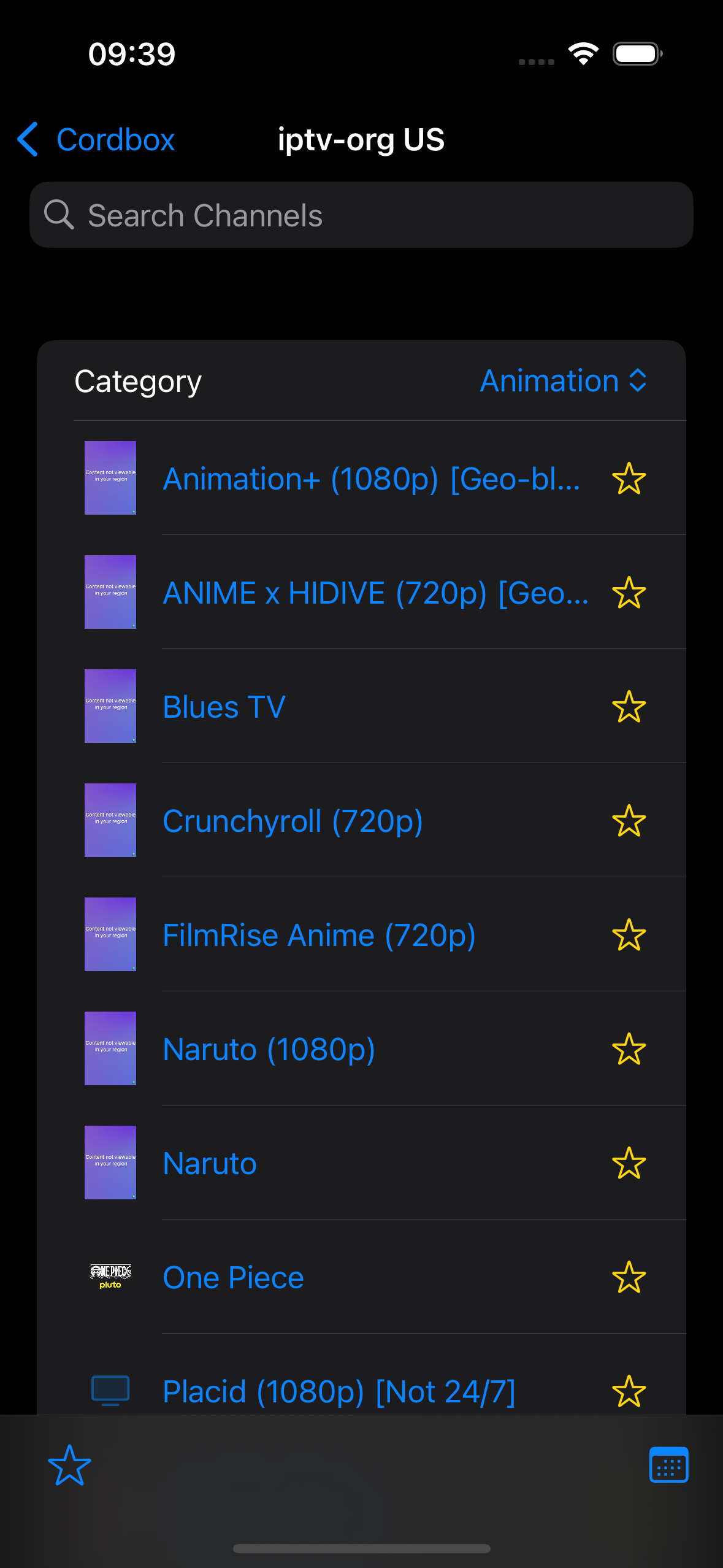
Search and category filters are both in the toolbar above the list. Tap anything to play it — a live channel starts immediately; a movie or episode shows a short synopsis first where one's available (toggle it off from the list's toolbar if you'd rather see more titles at once). For a media library (Plex, Jellyfin, Emby, DLNA, SMB/NFS), you can also sort the list — by name, size, or date, whichever the source actually has real data for.
Long-press for more options
Long-press almost anything in Cordbox — a source, a channel, a movie or episode, a programme, a download — to bring up a context menu with quicker access to actions that also exist elsewhere, plus a few that only live here. What's on it depends on where you are:
- The sources list (main screen) — Edit and Delete, the same as the row's swipe actions.
- A folder in the media library (a series, or a VOD category) — Look Up on OMDb, using the folder's own name.
- A movie or episode in the media library — Just-In-Time Transcode, Mark as Watched/Unwatched, Look Up on OMDb, Copy Info, and Delete. Where the source supports downloading (an Enigma2 recording, or a file on an SMB or NFS network share), also View in Downloads or Cancel Download (once downloading) and Download. For a movie or an Xtream series' own row, also Add to Watchlist or Remove from Watchlist.
- A channel in the channel list — Just-In-Time Transcode for live channels, Look Up on OMDb for whatever's currently airing (only shown once the guide knows a title), and Copy Info.
- The guide, grid or list view — Just-In-Time Transcode and Look Up on OMDb, same as the channel list.
- A single channel's own schedule (tap a channel in the guide to open it) — Watch Now for whatever's currently airing, and Record or Cancel Recording where the source supports it. See Recording & Downloads.
- Recordings & Timers (Enigma2) — Edit and Cancel, the same as the row's swipe action.
- Downloads — Just-In-Time Transcode, Mark as Watched/Unwatched, Look Up on OMDb, Edit, Delete, and Check & Fix Playback — see Recording & Downloads for what that one actually does.
Favorites
Mark channels you come back to often as a favorite, then filter the list down to just those — useful once a source's full channel count gets into the hundreds. With the list filtered to favorites, an Edit button appears (once you have more than one) to drag them into your own order — that order is remembered across restarts.
The guide
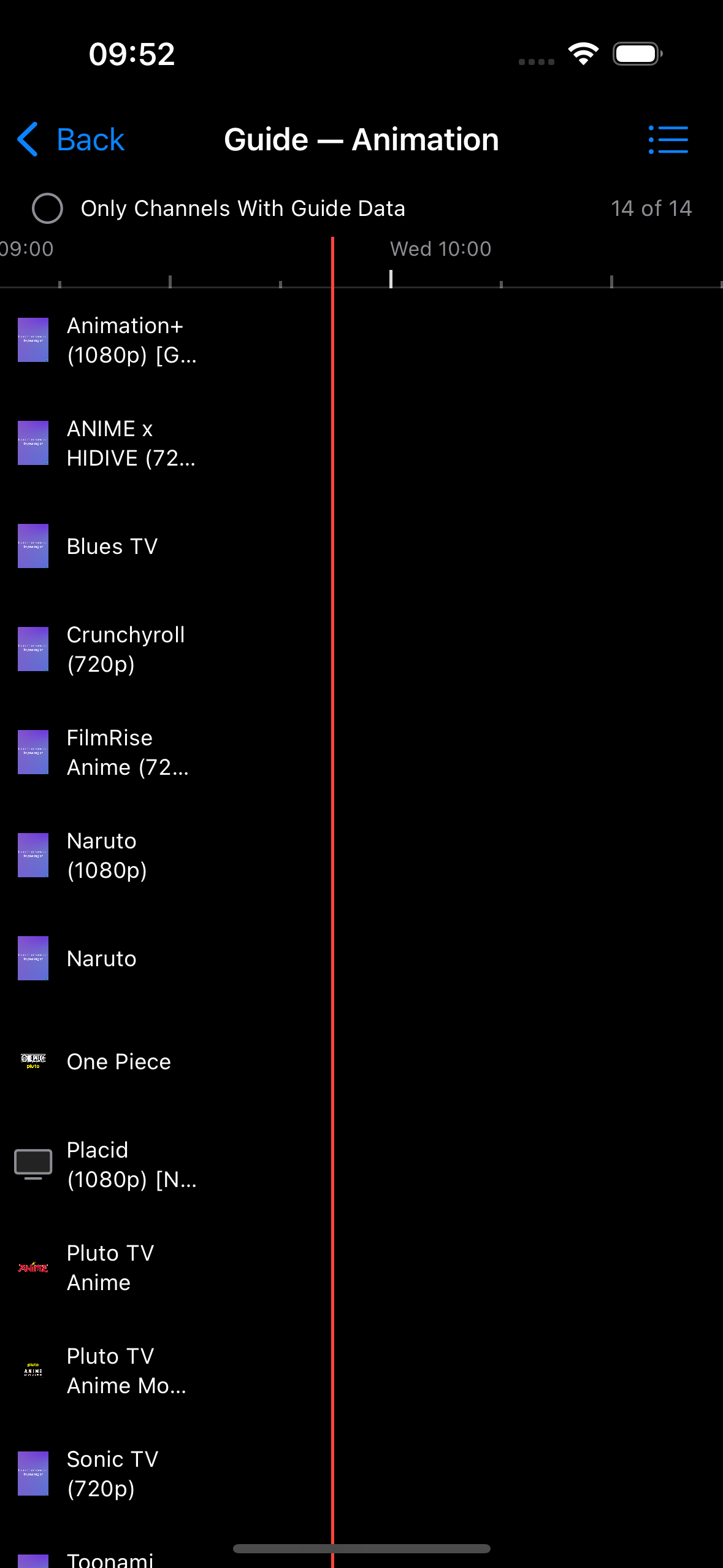
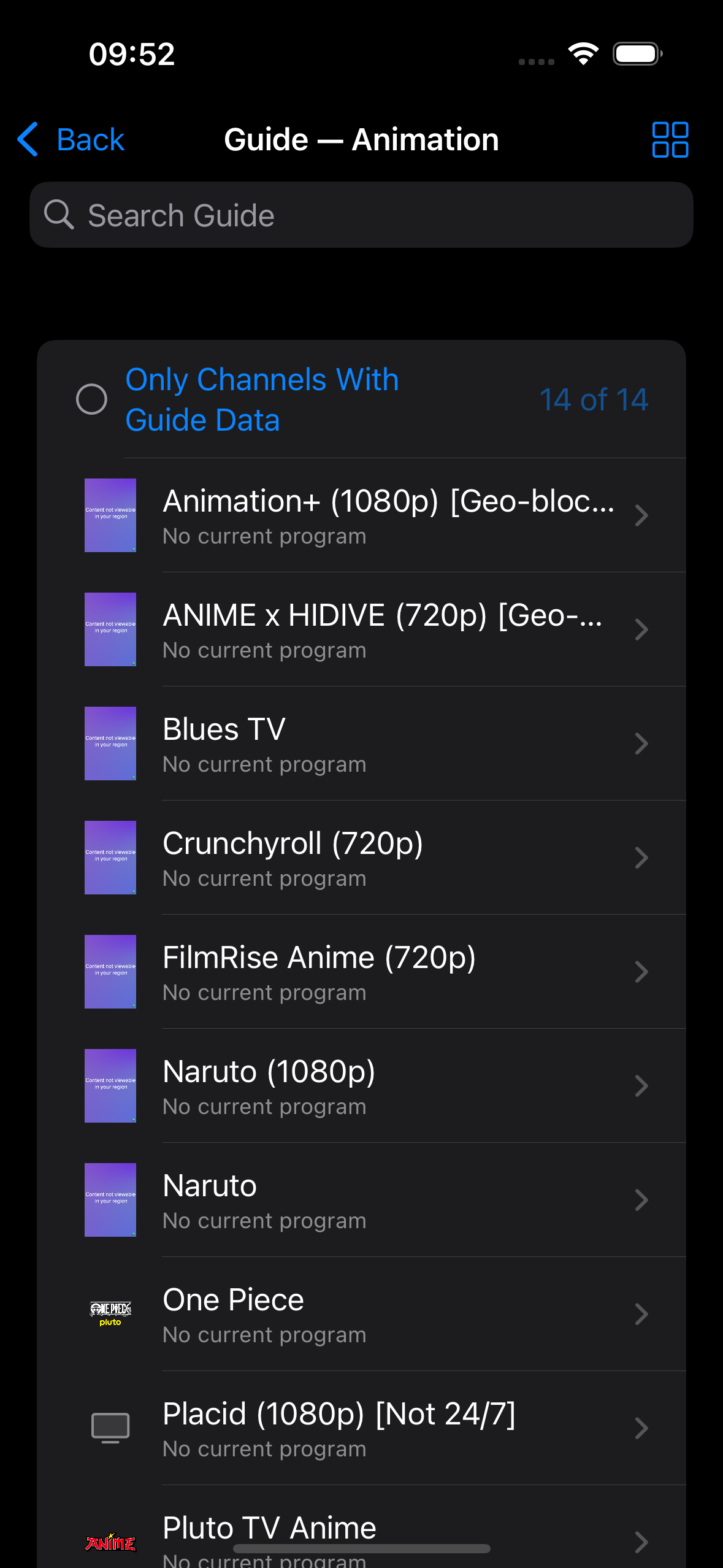
Live sources also offer a Guide — an electronic programme guide (EPG) showing what's on now and next. View it as a grid (every channel against a shared timeline, good for browsing what else is on) or a list (one channel's current and next programme, with a progress bar for what's airing now — more detail per channel, often a better fit on a smaller screen). Switch between them from the guide's own toolbar; your choice is remembered. Tapping a programme shows its details first, with a direct way to watch or — where the source supports it — record. If you'd rather see programme times as "2:30 PM" than "14:30", turn on 12-Hour Time in Settings.
Playback controls
Tap the video to show or hide the transport bar; it hides itself automatically after a few seconds of inactivity (adjustable, or disable it entirely, in Settings). Where a stream offers more than one audio track or subtitle track, Audio and Subtitles menus on the player let you switch between them.
Background the app during playback and video keeps going in a floating Picture-in-Picture window — but only for streams playing through Cordbox's AVPlayer engine. Some streams use VLCKit instead, automatically, because they don't play reliably in AVPlayer; see Choosing a player engine for why, and how to check or change which one a source is using.
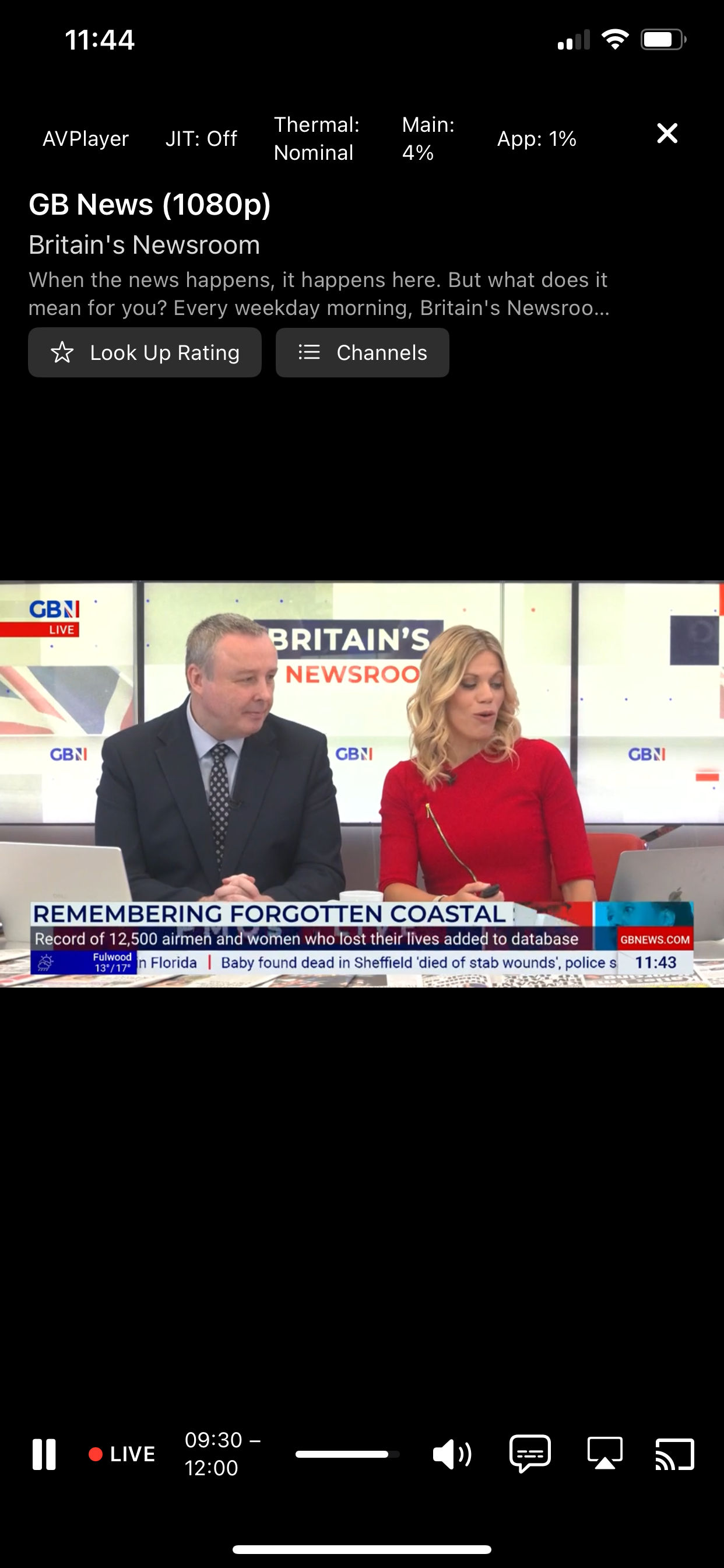
A small status row above the title always shows the active player engine, JIT status, device thermal state, and CPU usage — not a debug toggle, this is shown for every stream, since each of these can explain real playback behavior on its own (a VLCKit fallback, a slow Just-In-Time Transcode, or an unresponsive tap screen). See Show Stream Info in Settings for what that toggle adds on top of it.
Looking up a title's rating and plot
On the player's tap screen, a Look Up Rating button fetches a title's IMDB rating, Rotten Tomatoes score, and Metascore, along with its poster, plot, genre, cast, and awards, from OMDb — opened as a resizable sheet you can read through while playback keeps running underneath. This needs your own free OMDb API key set in Settings first; the button only appears once one's set. Matching is by title, so an unusual or scene-release-style title (e.g. one with a resolution tag or a bracketed year) may occasionally match the wrong thing, or nothing at all — the sheet always shows OMDb's own matched title alongside the result, so a mismatch is obvious rather than looking like a Cordbox bug.
The same lookup is also one long-press away from the channel list, the guide, and the media library, without opening the player first — see Long-press for more options below.
Copy Info
Long-press a movie, episode, or channel and choose Copy Info to see exactly what Cordbox is playing underneath — its title, source, stream ID, and the resolved stream URL or filename — with a Copy button next to each field for pasting elsewhere. Where the URL contains your account credentials (an Xtream username and password embedded in the path, for example), it's masked by default; tap the eye icon to reveal the real value before copying it.
For an SMB or NFS network share, this shows the real
smb:// or nfs:// address for the file —
useful for opening the same recording from a desktop file manager or
another app on your network — alongside the original, unparsed
filename from the share itself.
Reachable via long-press from the media library and the channel list — see Long-press for more options above.
Watched status
Movies, series episodes, and downloaded recordings get a small watched badge automatically once you finish them, in both the media library and Downloads. You can also mark something watched or unwatched yourself at any time — long-press it and choose Mark as Watched or Mark as Unwatched. This is independent of Resume Playback in Settings: turning that off stops playback from picking up where you left off, but doesn't change whether something's marked watched.
Watchlist
For Xtream movies and TV series, long-press an item — or, for a series, the show's own row before you open it — and choose Add to Watchlist to bookmark something you want to get to later. A small bookmark icon marks anything on your Watchlist, and a bookmark button in the toolbar filters the list down to just those. Remove something the same way, via Remove from Watchlist.
For a series, watchlisting applies to the whole show, not individual episodes — there's no separate watchlist or progress tracking per episode, just a bookmark on the series itself.
Filter by Resume
In a media library or Downloads, the circular-arrow button in the toolbar filters the current list down to just what has a resumable position saved. It finds resumable items anywhere in the source, not only the ones visible in your current folder — a movie category, a series, or a specific season all show the same results, so there's no need to hunt back down to wherever you were watching to pick it back up.
Just-In-Time Transcode
Fixing video or audio problems on the device, in real time, so more content can play in AVPlayer instead of falling back to VLCKit.
What it does
Some streams have a video or audio format AVPlayer can't decode directly — interlaced video that needs deinterlacing, a video codec AVPlayer doesn't support, or an audio codec it can't play. Auto falls back to VLCKit for these automatically (see Choosing a player engine), which works, but loses AirPlay and Picture-in-Picture, both AVPlayer-only.
With Just-In-Time Transcode turned on, Cordbox fixes exactly what's wrong — deinterlacing, re-encoding the video, transcoding the audio, or some combination — on the device itself, as playback starts, instead of falling back. Only the parts that actually need fixing are touched; anything already AVPlayer-compatible is passed through unchanged. This uses more battery than plain VLCKit playback (decode plus encode, rather than just decode), which is why it's off by default — worth turning on specifically for content where AirPlay or Picture-in-Picture matter to you.
Quick access via long-press
Both of these live in Settings, but reaching for Settings mid-browse is a detour — long-press a movie, episode, or download to toggle the main switch right there instead. Long-pressing a live channel or a guide entry does the same, but for live channels specifically also turns on Apply to Live Channels together with it, since a bare main-switch toggle wouldn't do anything for a channel you're looking at. See Long-press for more options for the full list of what's available where.
Where it applies
Three genuinely different cases, covered by two separate settings:
Downloads, recordings, and video-on-demand — the main Just-In-Time Transcode toggle in Settings. Playback starts within a few seconds, growing in the background as you watch, rather than waiting for a full transcode up front.
Casting a movie or episode — when you cast one that isn't natively Google Cast-compatible, Cordbox retries the cast through the same on-device fix automatically. See Casting for how this fits into Chromecast specifically. Casting a live channel is a different case entirely — see Casting's own section on Xtream, Enigma2, and Stalker sources for that.
Live TV — a separate toggle, Apply to Live Channels, since a live encode is a different, newer, less-tested case than the other two: there's no backlog to draw from, and the source connection can be interrupted and needs to reconnect on its own. Worth trying if Picture-in-Picture for live channels matters to you — see the limitations below before relying on it.
A known limitation: screen lock
For a live channel using Just-In-Time Transcode, AVPlayer surviving a full screen lock — continuing to play, with Picture-in-Picture picking back up the instant you unlock — works more often than not, but isn't guaranteed. iOS restricts a backgrounded app's access to the hardware video encoder this relies on, and exactly when that restriction actually interrupts an already-running encode varies from one lock to the next, even on the exact same channel.
When it doesn't survive, playback falls back to VLCKit automatically — audio keeps playing, just without Picture-in-Picture, and it can take up to about 45 seconds to reconnect back to AVPlayer once you're back in the app. Simply backgrounding the app (switching to another app or the Home Screen, without locking the screen) doesn't have this limitation — Picture-in-Picture stays reliable there regardless of how long you're away. It's specifically locking the screen where reliability varies.
Recording & Downloads
Cordbox has downloads for offline viewing, and, for Enigma2 boxes, its own box-side recording feature. They're related but not the same thing.
Downloading content
Where a source offers downloadable content — an Enigma2 recording already sitting on the box, or a file on an SMB or NFS network share — Cordbox can save it to your device for offline viewing later. This depends on the source actually offering something to download; not every source type does, and a live channel or an Xtream movie/series can always be streamed but isn't available to download.
Downloads end up in Downloads, in the overflow menu (⋯) on the main screen, where you can play them back, see the space they're using, and manage them.
Recordings on an SMB or NFS network share can be downloaded too, the same way as any other media library item — Cordbox connects to the share directly to pull the file across, rather than going through the same path used for streaming it.
Managing an in-progress download
While something's downloading, its row in Downloads shows progress and offers Pause, Resume, and Cancel. Pausing and resuming later picks up from wherever the transfer left off rather than starting over.
Downloads from an SMB or NFS share specifically need Cordbox to stay open in the foreground to keep transferring — unlike a download from a streaming source, there's no server on the other end for iOS to keep talking to in the background. If you leave the app briefly, Cordbox keeps the transfer going for a short grace period and pauses it automatically if you're away longer than that, then resumes on its own once you come back — unless you'd already paused it yourself.
Check & Fix Playback
Just-In-Time Transcode fixes a playback problem on the fly, every time you play something — useful for live TV, where there's nothing to fix in advance. For something already downloaded, there's a better option: long-press it in Downloads and choose Check & Fix Playback to fix it once, permanently, so it plays reliably in AVPlayer from then on without needing Just-In-Time Transcode at all.
A fast probe checks the file first and pre-selects what it actually needs — Fix Video (deinterlace) for combed/ interlaced footage, Fix Audio for a codec AVPlayer can't decode (AC-3, E-AC-3, DTS, MP2), both, or neither. A third option, Remux Only, repackages the file without re-encoding anything — worth trying if playback still fails despite Audio and Video both showing OK, since not every playback problem is a codec problem. Create Copy keeps the original untouched and adds a fixed copy alongside it; Replace Original fixes the download in place. Either way, once it's done, that file no longer needs Just-In-Time Transcode, VLCKit's fallback, or anything else special to play or cast normally — it's just a normal AVPlayer-compatible video from then on.
Recordings & Timers (Enigma2)
For an Enigma2 box with its own recording capability, schedule a recording directly from a programme's details in the guide. The Recordings screen, reachable from the channel list, lists every timer the box knows about — scheduled and currently recording — across every channel, not just whatever category you currently have selected. From there you can cancel a timer (swipe or long-press), or tap one to amend its title and start/end time — the recorded channel itself can't be changed on an existing timer, only the box. A currently-airing programme's own guide entry also has a long-press shortcut straight to Record/Cancel Recording, without opening its details first.
Live TV Extras
Enigma2 sources — a real set-top box on your own network — unlock a set of extras beyond ordinary playback: Zap Mode, a full remote control, and bouquet management. (See Recording & Downloads for recordings and timers, or Box Maintenance for administering the box itself.)
Zap Mode
With Zap Mode on, tapping a channel in Cordbox changes what's playing on the box's own TV output instead of starting playback in the app — handy for using your phone or tablet as a remote rather than watching through Cordbox itself. Turn it on from the toggle at the top of the channel list or guide for that source.
Remote control
A full virtual remote for the box, reachable from the channel list or guide once Zap Mode is on: power, volume, channel up/down, a directional pad with OK, a number pad, menu/exit/info/EPG, audio/ subtitle/text, a TV/Radio toggle, and favorites. It also shows the box's live status — what's playing, standby, or recording.
For two specific models — the Vu+ Duo4K SE and the Pulse4K — the remote is laid out to match the real physical remote that ships with the box, button-for-button, based on actual photos of each. Any other Enigma2 box gets a generic layout with the same functions, just not matched to a specific physical remote's exact positions.
Managing bouquets
A box with a lot of auto-generated bouquets (many satellite/cable setups have dozens) can make Cordbox's own channel list unwieldy. From that source's settings, Manage Bouquets lets you disable specific bouquets so Cordbox skips them entirely — the box itself and its other apps/remotes are unaffected, this only changes what Cordbox shows.
Box Maintenance
For an Enigma2 box, Cordbox can go beyond watching and administer the box itself — its bouquets, tuners, plugins, and settings. Long-press the source (or use its swipe/context menu) and choose Maintain Box to open it.
This is separate from ordinary viewing — changes here write directly to the box's own configuration, the same as making them from the box's own on-screen menu, and take effect for every app or remote connected to it, not just Cordbox.
Bouquets & Channels
Reorder the box's bouquets by dragging them (tap Edit first to reveal the drag handles). Tap into a bouquet to reorder its channels the same way, or use the + button to add a channel to it. A channel's own trailing button removes it from that bouquet — this only un-links the channel from the bouquet, it doesn't delete the underlying service — and asks for confirmation first. Copy Info on a channel row shows its raw service reference details.
The box's own reorder isn't perfectly consistent — Cordbox always re-reads the real order back from the box after every move, so if something lands a position or two off from where you dropped it, that's visible immediately rather than hidden; just drag it again.
There's no bouquet rename or whole-bouquet deletion here yet — only reordering and per-channel add/remove.
Tuners & Satellites
This covers satellite dish alignment via a live signal readout — full tuner and DiSEqC configuration isn't available here. Use Current Channel jumps straight to live signal for whatever the box is already tuned to, without changing the channel — the quickest option if you're already watching something. Otherwise, choose a mode: Quick Check zaps to any channel you pick and shows live signal while you adjust the dish; By Satellite zaps to a known transponder for a strong, specific reference point instead.
Either way, a live signal percentage updates continuously while the screen is open, so you can watch it change in real time as you physically move the dish.
Plugins & Packages
Lists everything already installed under the box's own enigma2-plugin-* naming, with a search field once the list gets long. Remove one directly from here (confirmation first), or use Browse Available to search the box's full plugin feed and install something new. This is scoped to plugins specifically — it doesn't touch the box's much larger base system package catalog, and there's no whole-system update or upgrade here.
Screenshot
Grabs a still frame straight from the box — Video, OSD (the box's on-screen menu overlay, if it's open), or PiP (only meaningful while Picture-in-Picture is active on the box itself). Boxes with a physical front-panel display also get an LCD mode, capturing exactly what's shown there. Once captured, Share sends the still image via the system share sheet — useful for confirming what's actually on the TV, or capturing an on-screen glitch, without walking over to look.
AutoTimer
For boxes with the AutoTimer plugin installed, this manages rules that automatically schedule a recording whenever an upcoming EPG entry matches a text search — no need to schedule each showing of a recurring programme by hand. A rule can be narrowed to a specific channel, specific days of the week, and a time window, and switched on or off without deleting it.
Test This Rule, on an individual rule, shows what that rule alone would currently record; Simulate All Rules does the same across every enabled rule at once. Run Now asks the box to apply AutoTimer immediately rather than waiting for its own schedule.
Backups
Back Up Now saves the box's current bouquets and tuning data as a file, kept in a local history on this screen — worth doing before making any bouquet changes above. Share a backup from its row via the system share sheet the same way as anywhere else in Cordbox. There's no restore from here yet — a backup you've made is safe to keep, but bringing it back onto the box isn't something this screen does today.
Advanced Settings
Power shows the box's current state and offers restart Enigma2, reboot, and standby — all of these interrupt live playback and make the box briefly unreachable while they run.
Settings exposes the box's own native settings menu tree directly. Changes here write straight to the box's configuration and take effect immediately, exactly as if you'd made them from the box's own on-screen menu — they can affect live playback or picture output right away.
Multi-Boot lists the box's available boot slots and lets you switch between them (a confirmation first, since it reboots the box). Not every box supports this — where it isn't available, Cordbox shows the specific reason (an OpenWebIF version too old to expose the feature, or hardware with only a single boot slot) rather than a generic "unavailable."
Casting
Send playback to another screen straight from the player.
Cordbox only ever sends casts outward — it doesn't receive them from other apps or devices, and doesn't run as a receiver for either AirPlay or Chromecast.
AirPlay
Uses the standard system AirPlay control — send whatever's playing to an Apple TV or an AirPlay-compatible television or speaker. AirPlay is only available for streams playing through Cordbox's AVPlayer engine — VLCKit doesn't support it yet. Some streams use VLCKit automatically because they don't play reliably in AVPlayer; see Choosing a player engine for why, and how to check or change which one a source is using.
Chromecast
Off by default — turn on Enable Chromecast in Settings first. Once on, it uses the standard Google Cast SDK to send whatever's playing to a Chromecast or a Chromecast-built-in TV or speaker, sender-side only, same as AirPlay above. Experimental.
If a source isn't natively Cast-compatible, Cordbox automatically retries the cast through an on-device Just-In-Time fix rather than failing outright — the same fix used for AVPlayer playback, applied here for whatever the Chromecast receiver itself needs.
Live channels on Xtream, Enigma2, and Stalker sources
These three source types cast a live channel differently from M3U: there's no direct hand-off of the channel's own URL to the receiver at all. Instead, casting a live channel requires Just-In-Time Transcode — both the main toggle and Apply to Live Channels — turned on in Settings; the cast button for a live channel from one of these sources simply doesn't appear otherwise. See Just-In-Time Transcode for what it fixes and its own known limitations — if a channel shows JIT: Failed, casting won't be available for that channel either, since there's no non-JIT path for live content on these source types.
One side effect worth knowing: because Just-In-Time Transcode always processes the stream on this device before handing it to the receiver, a live Xtream, Enigma2, or Stalker channel is effectively always cast "through this device" — there's no separate setting for it, and no need for one, since a VPN-only source of one of these types already works over Chromecast/AirPlay for free once JIT is on, the same way Through This Device below does for M3U.
Casting a VPN-only M3U source
M3U sources have a per-source Casting Route setting, since M3U's normal cast is genuinely direct — the channel's own URL handed straight to the Chromecast or Apple TV, which works for most setups. Choose Through This Device instead if that source is only reachable while your device is connected to a VPN — a Chromecast or Apple TV has no VPN of its own, so it can't reach the stream directly. With this set, your device fetches the stream itself and relays it over your local network instead, for both AirPlay and Chromecast. This only works while Cordbox stays open in the foreground; local-only playback (no casting or AirPlay) is unaffected either way. See Remote Access for more on using Cordbox over a VPN.
Managing Sources
Once you have more than one source, a few things in the main screen's toolbar and overflow menu (⋯) help keep them organized.
Editing, reordering, and removing
Tap Edit at the top of the main list to drag sources into whatever order suits you — most-used first, for instance. The same screen's swipe actions (or a long-press) let you edit a source's connection details or remove it.
Backup and transfer
The overflow menu's Export Sources and Import Sources move sources — including saved credentials — to another device, or restore them after a reinstall. Export includes each source's saved credentials (password, MAC address, and so on) deliberately, so a restore is genuinely one step rather than re-typing everything by hand. The exported file only goes wherever you send it yourself through the system share sheet (AirDrop, Files, email, and so on) — nothing is uploaded anywhere automatically.
Export Sources opens a picker rather than exporting everything at once — choose which sources to include, and optionally include each source's favorited channels, with their order, and its position in your source list. Import Sources shows a preview of what's inside a backup file first, including how many favorites each source has, so you can choose which sources to actually bring in (and whether to restore favorites and order along with them) before anything's added.
Player engine, per source
Every source has its own Player setting — Auto, AVPlayer, or VLCKit — set when you add it and editable afterward from that source's own settings. See Getting Started for what each option does.
Sorting a media library
For Plex, Jellyfin, Emby, DLNA, and SMB/NFS sources, the list can be sorted by name, size, or date — whichever the source actually provides real data for; not every source type reports both size and date, so only the options that mean something for a given source are offered.
Settings
Reachable from Settings in the overflow menu (⋯) on the main screen. These are global — they apply across every source, not per source.
Manage Subscription
Opens the subscription screen — subscribe to remove ads, or, if you're already subscribed, see your renewal date and price, or restore a purchase made on another device. See "How do ads work on the free tier?" for how the ad-supported tier itself works.
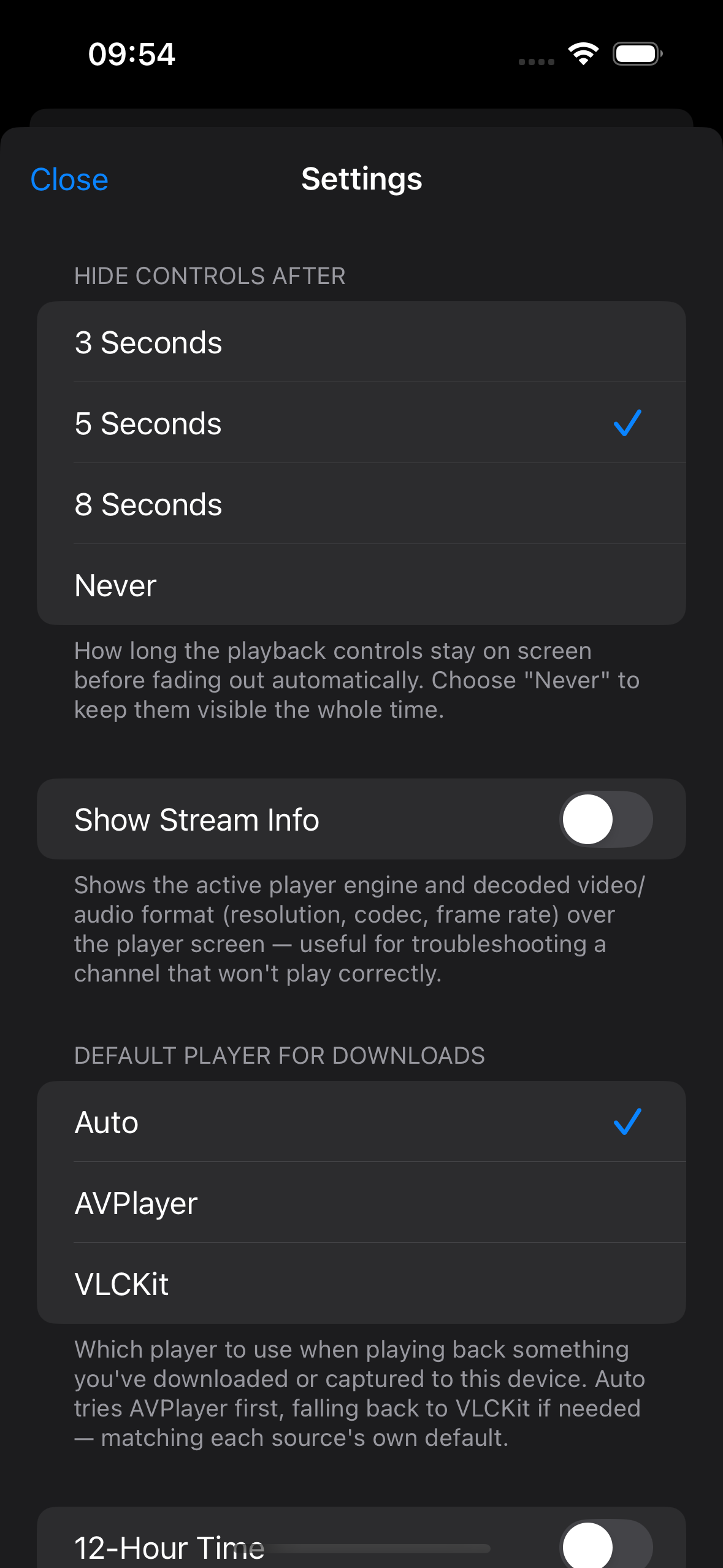
Hide Controls After
How long the playback controls stay on screen before fading out automatically. Choose "Never" to keep them visible the whole time.
Show Stream Info
Shows decoded video/audio format (resolution, codec, frame rate) over the player screen — useful for troubleshooting a channel that won't play correctly. The active player engine, JIT status, the device's current thermal state, and CPU usage (both the app overall and its main thread specifically) are shown over the player regardless of this toggle, since they explain real playback behavior on their own — including whether the device overheating, or a genuinely overloaded main thread, is behind a slow or unreliable Just-In-Time Transcode or an unresponsive tap screen. Thermal state is shown in white normally, turning orange or red once it's elevated enough to plausibly be affecting playback.
A Thermal State row right underneath this toggle shows the same value directly in Settings, live, whether or not anything's currently playing — a quicker check than starting playback just to see it.
Enable Chromecast
Off by default — turn this on to cast already-compatible content to Chromecast devices directly; content that needs on-device transcoding first is transcoded automatically and retried. Experimental. When casting a downloaded video, keep Cordbox open in the foreground, since it's streamed from this device. See Casting for the full picture.
Default Player for Downloads
Which player to use when playing back something you've downloaded to this device. Auto tries AVPlayer first, falling back to VLCKit if needed — matching each source's own default. See Getting Started for what Auto/AVPlayer/VLCKit each mean.
Resume Playback (Downloads)
Picks up a downloaded video where you left off instead of starting from the beginning. Independent of watched status — see Browsing & Watching for how Cordbox tracks what you've already watched.
Just-In-Time Transcode
Fixes video/audio problems on the device in real time instead of falling back to VLCKit, so more content can use AirPlay/Picture-in- Picture. Off by default (uses more battery than plain VLCKit playback). A separate Apply to Live Channels toggle, shown once the main one is on, extends this to live TV — see Just-In-Time Transcode for the full picture, including a known screen-lock reliability limitation for live channels.
Allow Cellular (Downloads Network)
Off by default. Turn this on to let downloads use cellular data instead of only Wi-Fi. Takes effect from the next launch, not mid-download.
12-Hour Time
Shows program times in the guide (grid, list, and per-channel listings) as, for example, 2:30 PM instead of 14:30.
Guide and programme times currently follow your device's own clock format — Settings → General → Language & Region → 24-Hour Time on your iPhone/iPad — rather than this toggle on its own. If your device is set to a 24-hour clock, times in Cordbox will show as 24-hour even with this switched on; turn off 24-Hour Time in iOS Settings if you want to see 12-hour times here.
Permanent Display Mode
For a screen mounted to show the guide continuously — for example, next to a TV showing the set-top box's own output. With this on, the guide's auto-scroll recovers from being touched faster, and tapping a channel to play or change it on the set-top box asks for confirmation first, so an incidental touch on an unattended screen can't unexpectedly change what's showing.
Playback Diagnostics
A history of recent playback attempts, including any that didn't finish cleanly — useful for troubleshooting a channel that hangs or crashes the app. See also the FAQ's "a stream won't play" answer.
Download History
A history of completed and failed downloads, separate from the Downloads screen itself — useful for checking whether something finished or seeing why it didn't.
Debug Logging
Off by default. Writes detailed technical logging to a local file, useful when troubleshooting a hard-to-reproduce problem — turn it on, reproduce the issue, then view or share the log from View Debug Log underneath. Logging keeps running across app restarts until you turn it back off.
"Playback Interrupted" Alert
Warns on launch if the app had to restart after a channel hung or crashed during playback. Turning this off doesn't affect Playback Diagnostics history above, just this alert.
Ratings Lookup (OMDb API key)
Lets you look up a title's IMDB rating and Rotten Tomatoes score from the player screen — see Browsing & Watching. It's free: omdbapi.com issues your own personal key by email, which keeps your lookups separate from everyone else's rather than sharing one key's limit across every Cordbox install. A key can take a few minutes to activate after signing up — paste it in here once it has.
Collect Movie Descriptions
Off by default. For Xtream Codes sources, quietly fetches missing movie/series descriptions in the background a little at a time, so browsing and search have plot text to show without waiting on a slow bulk fetch. Only runs while nothing else needs the source, and pauses automatically while you're actively browsing that source's channel list.
Show Feature Tips
Shows the short in-context tips that point out newer or less obvious features as you use the app. Turn off to stop seeing them, or use Reset All Tips underneath to see them all again from scratch.
Remote Access (VPN)
Connecting a VPN back to your own network while you're away is a common way to keep using a home Enigma2 box, NAS, or DLNA server from outside the house. Most things work exactly as they do at home, but a couple of behaviours are specific to being on a VPN rather than your actual local network — this page covers what to expect.
DLNA/UPnP discovery doesn't work over VPN
Discovering DLNA/UPnP media servers relies on a network technique called multicast, which almost all consumer VPN setups (WireGuard, OpenVPN, and most home-router VPN servers) don't carry across the tunnel — even a VPN that otherwise routes ordinary traffic to your home network perfectly well. This is a limitation of how VPN tunnels work in general, not something specific to Cordbox.
Playing a DLNA source once it's added works fine over VPN — it's only the discovery step that depends on multicast.
Workaround: add the source manually by its device description URL instead of using Discover. You'll need to know this URL ahead of time — either note it down while you're on your home network (Discover Devices shows it), or check the server's own settings. When adding a DLNA/UPnP source, choose the manual entry and paste the URL in directly.
Enigma2: Live TV works over VPN, but Recordings doesn't
If Live TV plays fine over VPN but tapping Recordings returns "Couldn't Load Recordings" with a message like "The box returned an unexpected response", this is a setting on the box's own OpenWebIF software, not a Cordbox issue.
OpenWebIF restricts access to its own web/API service to your box's local network by default — a VPN's assigned address, even though it's a private address like your home network's own, isn't automatically trusted the same way. Live TV isn't affected because it streams through the box's separate native streaming port, which isn't part of OpenWebIF's own access-controlled service at all; Recordings (and anything else that goes through OpenWebIF's API) is.
Fix: on the box itself, go to Menu → Plugins → OpenWebif and turn on "Enable access from VPNs" (wording may vary slightly depending on your box's software). If you'd rather not change that, enabling a username/password for OpenWebIF's own web interface in the same settings screen works too — an authenticated request is trusted regardless of where it's coming from.
Casting an M3U source that's only reachable over VPN
Casting works differently: rather than your device just watching a stream, it hands the stream's address to a Chromecast or Apple TV, which then connects to it independently. Neither of those has a VPN of its own, so if the M3U source is only reachable while your own device is on a VPN, they can't reach it directly, even though Cordbox itself can.
M3U sources have a per-source Casting Route setting for this — set it to Through This Device and your device relays the stream over your local network instead, for both AirPlay and Chromecast. This only works while Cordbox stays open in the foreground. See Casting for the full setting.
This particular setting only exists for M3U, but a VPN-only Xtream Codes, Stalker, or Enigma2 source — including the Enigma2 case just above, once Live TV itself is reachable over VPN — doesn't need one: casting a live channel from these source types always goes through Just-In-Time Transcode rather than a direct hand-off, which relays through this device automatically as a side effect, VPN or not. The trade-off is that Just-In-Time Transcode (both the main toggle and Apply to Live Channels) has to be turned on for the cast button to appear on a live channel from these sources at all — see Casting for the full picture.
FAQ
Does Cordbox store or provide any channels?
No. Cordbox is a player, not a content provider — it plays whatever you point it at (a playlist, portal, or media server you already have access to elsewhere). It doesn't host, bundle, or supply media of its own.
What's the difference between the grid and list guide views?
Both show the same electronic programme guide, laid out differently. Grid view shows every channel against a shared timeline, useful for browsing what's on across channels at a glance. List view shows one channel's current and next programme at a time, with more detail per entry — often a better fit on a smaller screen. Switch between them from the guide's own toolbar; your choice is remembered.
What's Zap Mode?
Available for Enigma2 sources — a real set-top box on your network. With Zap Mode on, tapping a channel in Cordbox changes what's playing on the box's own TV output instead of playing it in the app, so you can use your phone or tablet as a remote channel-changer. A full virtual remote for the box is also available once Zap Mode is turned on for that source — see Live TV Extras.
Can I record programmes?
For sources that support it (Enigma2 boxes with their own recording capability), yes — schedule a recording directly from a programme's details in the guide.
Can I edit a recording I've already scheduled?
Yes — from the Recordings screen, tap a timer to change its title or start/end time, or swipe to cancel it outright. See Recording & Downloads.
Can I download things to watch offline?
Where a source offers downloadable content — an Enigma2 recording, or a file on an SMB or NFS network share — Cordbox can save it to your device. See Recording & Downloads.
Does Cordbox support casting to a TV?
Yes, via AirPlay or Chromecast — see Casting. Cordbox only ever sends casts outward; it doesn't receive them from other apps or devices.
Can I check a title's rating without leaving the player?
Yes — and there are actually two ways to check one, depending on when you want it. On the player's tap screen, a Look Up Rating button does this while something's already playing — see Browsing & Watching for what it shows. To check before you start anything, long-press the channel, movie, episode, or folder instead — Look Up on OMDb is one of the options wherever you're browsing. See Long-press for more options. Both need a free OMDb API key set in Settings first.
What does Permanent Display Mode do?
It's for a screen mounted to show the guide continuously, e.g. next to a TV — it makes the guide's auto-scroll recover faster after being touched, and requires confirmation before a tap changes what's playing, so an incidental touch on an unattended screen can't accidentally change the channel. See Settings.
Why don't Picture-in-Picture or AirPlay work on some channels?
Both only work for streams playing through Cordbox's AVPlayer engine — VLCKit doesn't support either yet. Some streams use VLCKit automatically, even with the default Auto setting, because they don't play reliably in AVPlayer itself. See Choosing a player engine for how to check or change which one a specific source is using.
What is Just-In-Time Transcode?
A setting that fixes a video or audio problem on the device itself, in real time, rather than falling back to VLCKit. Some streams have a format AVPlayer can't decode directly — interlaced video that needs deinterlacing, or a video or audio codec it doesn't support — and Cordbox normally works around that by switching to VLCKit automatically. With Just-In-Time Transcode on, it fixes exactly what's wrong instead — only the parts that actually need it — so playback can stay on AVPlayer. See Just-In-Time Transcode for the full picture.
Why isn't Just-In-Time Transcode on all the time?
Two real costs, weighed against what it buys you. It uses more battery than plain VLCKit playback — decoding and encoding at once, rather than just decoding. And it isn't instant: for a download or on-demand video, playback starts within a few seconds and keeps transcoding in the background as you watch, but a live channel that genuinely needs a full fix — both video and audio — has to establish that encode before playback starts at all, which real-device testing has found can take up to about 45 seconds on some channels, not the few seconds it's sized for on lighter fixes.
What you get for that: AirPlay and Picture-in-Picture only work through AVPlayer, so turning this on is what makes them available for content that would otherwise be stuck on VLCKit. For Xtream Codes, Enigma2, and Stalker sources specifically, it's more than a nice-to-have for casting a live channel — there's no other way to cast one at all from these source types, and doing so happens to work over a VPN-only source automatically too, with nothing extra to configure. See Casting for that last part. Worth turning on for content where any of this matters to you, and leaving off otherwise.
A stream won't play — what can I try?
Cordbox tries a couple of different playback engines automatically. When it gives up, it shows the actual reason where one's known — access denied by your provider (a connection limit, an expired line, or a regional restriction), the channel no longer being available, or your device simply being unable to reach the provider — rather than a generic failure message, so you often know straight away whether it's worth trying again or a question for your provider. If a particular stream still won't play, check that source's own settings for the Player option — pinning a specific engine can help with a stream that doesn't play well with the default Auto choice. Playback Diagnostics in Settings keeps a history of recent playback attempts, including any that didn't finish cleanly, which is a good next place to look if a channel keeps hanging or crashing the app.
How do ads work on the free tier?
Cordbox's free tier shows a short ad, served by Google AdMob, before playback starts. Live channels are capped to roughly one every 20 minutes of channel-surfing, so flipping between channels doesn't mean an ad every single time; video-on-demand isn't capped the same way, since starting a new title happens far less often than changing channels. Subscribing removes ads entirely — see Manage Subscription in Settings.
Is my source login information kept safe?
Credentials are stored in the device's Keychain, not in plain settings storage. If you back up or move your sources between devices, that backup is a file you control and share yourself — it's not uploaded anywhere by Cordbox.